Treon Gateways
The Treon Gateway connects your sensors to Treon Connect. It is the crucial link between sensors, assets and the cloud AI intelligence. The gateway collects sensor data over Wirepas mesh or Bluetooth LE and sends it to the cloud over cellular, Wi-Fi, or fixed Ethernet connection. It also passes configuration and firmware updates to the vibration sensors.
The gateway ships in a protective enclosure rated IP67, dustproof and waterproof for indoor or outdoor industrial use, with an operating range of −20 °C to +50 °C. It is not intended for continuous submersion, and the enclosure itself is not hazardous-area certified.
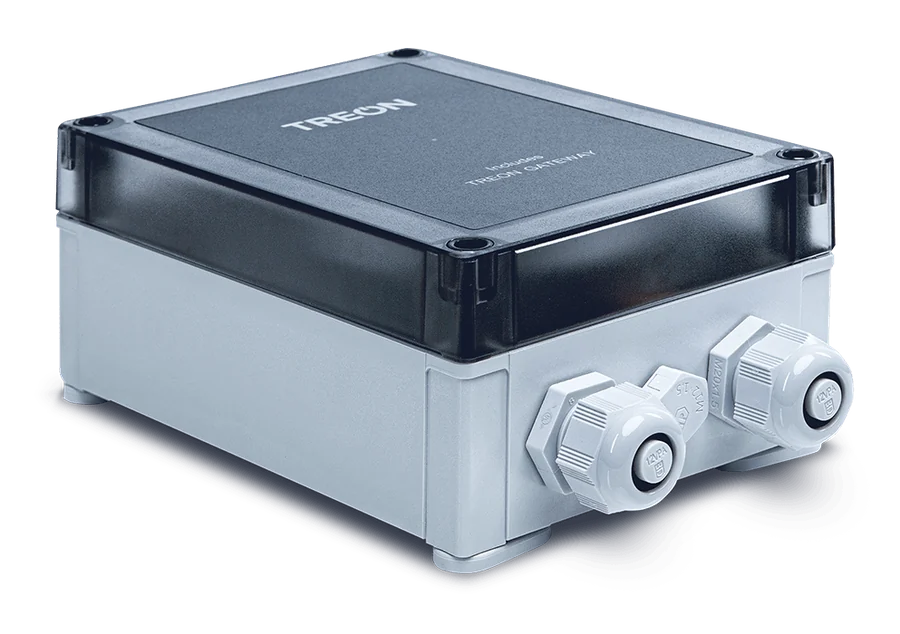
One gateway, two wireless variants
Both solutions use the Treon Gateway — the same gateway, supplied in the wireless variant that matches your sensor:
- Wirepas variant (Treon Make) links Treon Industrial Node X sensors over a Wirepas mesh. A gateway connects to up to 14 nodes directly and dozens more through the mesh, with a node typically within ~50 m of its nearest gateway; a common ratio is 20–30 sensors per gateway.
- Bluetooth variant (Treon Flow) links Treon Industrial Node C sensors over Bluetooth, each sensor typically within 20–40 m, with tens of sensors per gateway.
A mesh is the right shape for a high density of connected devices: each device transmits its own sensor data and relays for the others, and the relays provide the most efficient path back to a gateway. One gateway carries a mesh of a few to hundreds of wireless devices, and can process, store and forward that data to in-premise or cloud backends.
The variant is fixed to the sensor technology — a Wirepas gateway serves the Treon Industrial Node X, a Bluetooth gateway serves the Treon Industrial Node C. Walls, metal structures and other obstructions reduce effective range, so gateways are positioned to keep every sensor in reach. See Network for how to plan that.
What's in the box
- Gateway in protective enclosure
- Documentation
Keys and parts
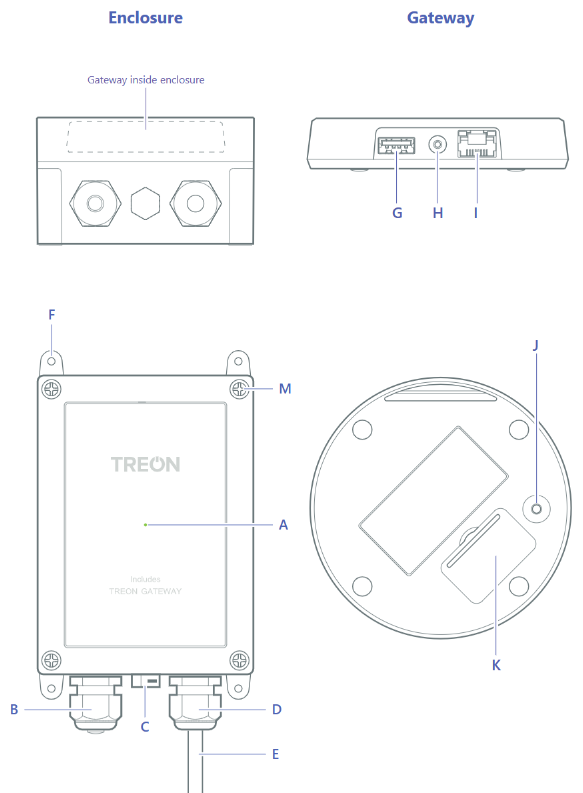
| A | Status light | H | Power cable connector |
| B | Ethernet cable gland | I | Ethernet cable connector |
| C | Air vent | J | Micro SIM card slot |
| D | Power cable gland | K | Configuration button |
| E | Power cable | L | Finger guard for power cable |
| F | Adjustable mounting brackets | M | Lid screws |
| G | USB A host port |
Connectivity to Treon Connect
A gateway must reach the internet to talk to Treon Connect, and supports three methods. It tries them in a fixed priority order: Ethernet, then cellular (SIM), then Wi-Fi — so Ethernet and cellular automatically override a configured Wi-Fi connection. You can change the priority in the gateway's configuration UI.
| Method | Requirements |
|---|---|
| Ethernet | Run the cable in through the spare cable gland. Best for a permanent connection. |
| Cellular (SIM) | Micro-SIM on 2G or LTE-M1. 4G and 5G SIM cards are not supported. NB-IoT is off by default — its bandwidth is too low. Supplied with a working SIM by default. |
| Wi-Fi | 802.11 b/g/n, 2.4 GHz networks only. |
The USB host port takes an external USB SIM modem where 4G or 5G is needed. The gateway must have the driver for that modem — drivers for many popular models are pre-installed (Huawei E3372, ZTE MF833V, Huawei E3372h-320 LTE, Alcatel Link Key 4G IK40V and others). Check with Treon Support for a model not on the list. A USB SIM modem has to be configured on a computer first; it cannot be configured from the gateway.
Once online and registered the gateway appears in Devices. For mounting, powering and network setup step by step, see Installation.
Power and safety
Use only the power supply unit supplied with the product, and do not use a USB cable longer than 2 m with it. Keep at least 20 cm between the gateway and people (radio-exposure distance), and do not cover the device — covering it prevents it from operating properly.
Before opening the enclosure
Always unplug the gateway's power cable from the wall outlet first. Do not remove the finger guard (L) of the power cable — doing so may result in electric shock.
Keeping sensors connected
The gateway is the uplink for every sensor that reports through it. If sensors drop off the network view, check the gateway is online first — a gateway outage takes all of its sensors with it. Use the network view's Diagnostics for per-node network health.
Power gateways on before sensors
In a deployment with several gateways, power on all the gateways and wait for green before activating the sensors — otherwise the sensors form a mesh around the first gateway they find rather than arranging themselves optimally.
Product documentation
Datasheets, certifications, declarations of conformity and the printed quick start guide for the Treon Gateway are on the Treon website: Product Documentation.