Creating a report
Set up a recurring report in three steps. The Schedule report wizard guides you through each tab in order.
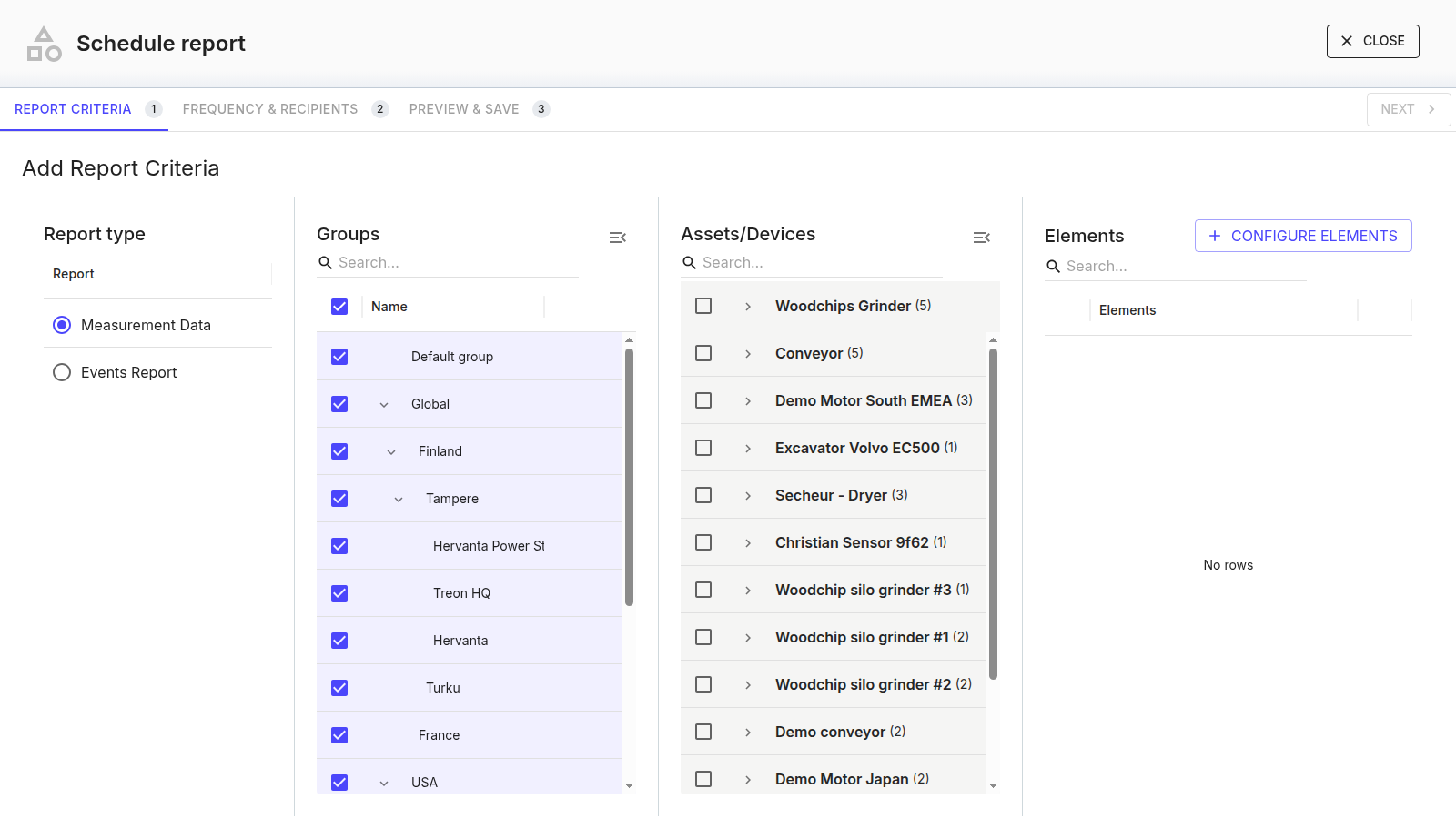
1. Report Criteria
- Report type — Measurement Data (KPI and spectrum data) or Events Report (an overview of events).
- Groups — choose which groups the report covers.
- Assets / Measurement Points — narrow it to specific machines or points.
- Elements (Measurement Data) — Configure Elements to add the KPIs to include (per selected device) and, for spectra, Add Spectrum / FFT — acceleration or velocity, most recent or event-based, single- or multi-axial. Spectrum/FFT elements apply only to Treon Make (Treon Industrial Node X) points, which capture FFT; a Treon Flow (Treon Industrial Node C) report covers KPIs.
2. Frequency & Recipients
- Report name and optional remarks.
- Start time — the first run; its tooltip explains how the start time and interval interact.
- Frequency — Daily, Weekly and/or Monthly (you can combine them).
- Format — HTML and/or PDF.
- Unit Standard — SI or US (Measurement Data).
- Recipients — add email addresses (each is validated, and duplicates are rejected), and remove any you selected.
A report needs a name, a start time, at least one frequency and at least one format before you can save.
3. Preview & Save
Reorder the assets and measurement points by drag-and-drop, preview the result (an Asset Health Summary or Event Summary), and Save (with a confirmation).
View, download, delete
Open a report from the list with View Report:
- Filter by time range (including a custom start and end) to re-render it over a chosen period.
- Download it as a PDF (named by date).
- Delete it (with a confirmation), or edit it to reopen the same wizard as Update report.