Handling an event
Closing the loop from insight to corrective action is the core daily task. This page walks an event from Active to closed, including the feedback that makes the AI more accurate.
Open an event
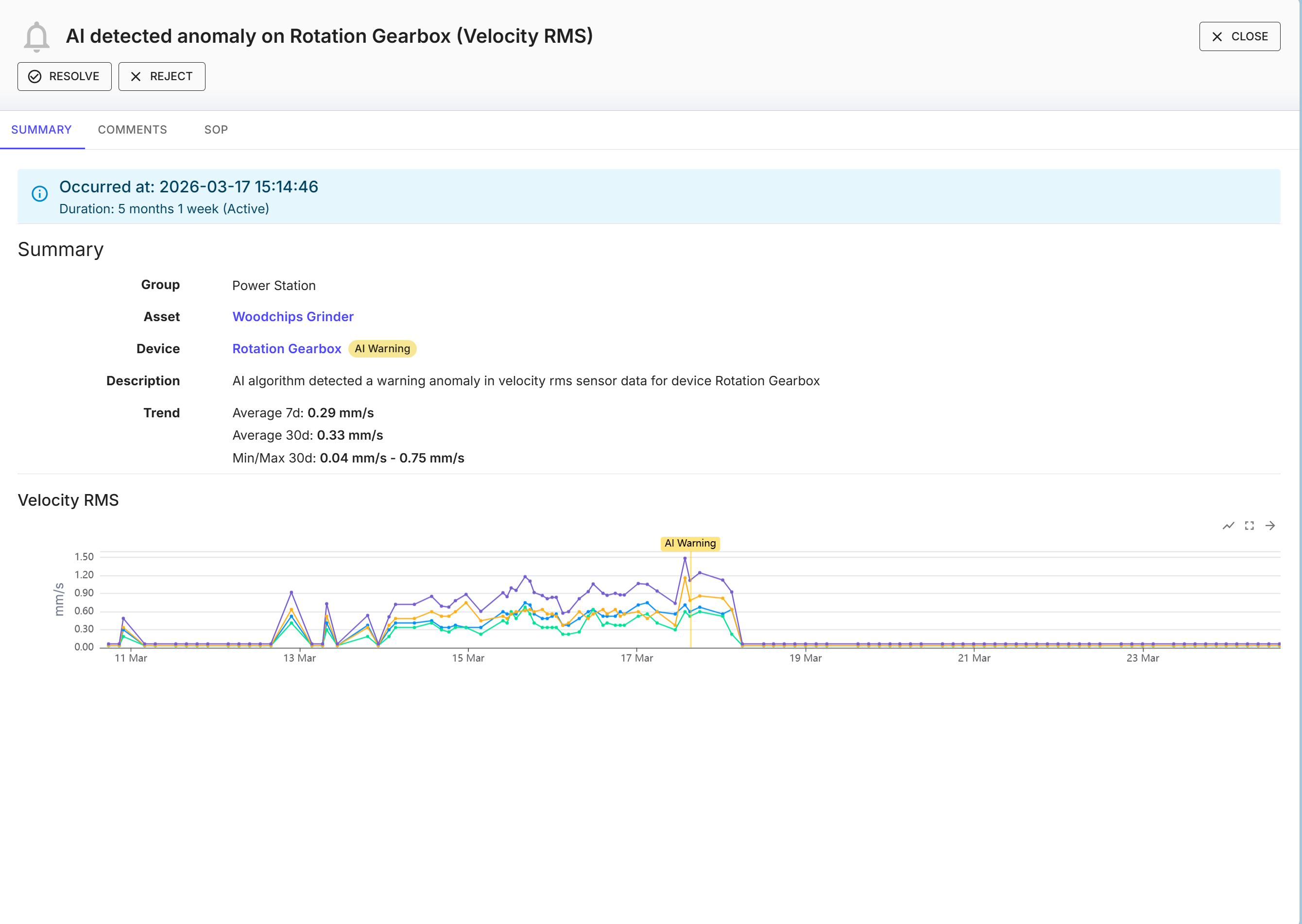
On the Active tab, click an event's description to open its detail drawer. The header carries Resolve, Reject and Set Assignee actions, and the body has three tabs: Summary, Comments and SOP.
Summary
The Summary tab gives you everything needed to judge the event without leaving it:
- Occurred at and Duration — when it fired and how long it has been active.
- Group, Asset and measurement point (with the point's current severity).
- Description — the KPI, the Value that fired it, and the Threshold it crossed (for a threshold or ISO event).
- Trend — the KPI's 7-day and 30-day averages and 30-day min/max, so you can see whether this is a spike or a sustained change.
- An inline chart of the KPI around the event, with a line/scatter toggle, fullscreen, and Go To Trends to jump straight into the full Condition trend.
Comments
A thread for the maintenance team — post comments to record what you found and what you did, so the history of the machine stays with the event.
SOP
The standard operating procedure attached to the asset (a PDF), shown in context so the technician has the right instructions to hand while dealing with the event.
Resolve or reject

Once you've dealt with an event, close it. Which action you choose matters, because it feeds back into AI anomaly detection:
- Resolve — the event mattered: either a real fault you've handled, or a confirmed false positive (normal behaviour the model hadn't seen). Resolving asks for a Cause of Event, an Action Taken where the cause is a real fault, and Remarks. Resolving an AI event as a false positive (cause No Failure Detected or New Process Change) feeds the period back into the model as healthy data; every other cause leaves the model untouched.
- Reject — the event isn't significant and you don't want it kept. Rejecting has no effect on the AI model (it also asks for remarks).
Both move the event to the History tab.
Resolving AI events and retraining
Resolving an AI event as a false positive starts a retrain by itself, with the flagged period counted as healthy — so don't resolve an AI alert that way before the underlying issue is fixed. Retraining after a genuine change to the machine is a separate control on Set Event Rules, not part of the resolve dialog. See what closing an event does to the model.
Events are closed one at a time from the detail drawer — there is no multi-select bulk clear.
Assign an event
An event can be assigned to a user, so it's clear who is handling it — the list shows an Assignee ("No Assignee" until set). Assignees are notified by mobile push (they need the mobile app with notifications enabled), and you can filter the list by assignee to see your own workload.
Find the events you need
- The severity tiles across the top (Alerts / AI Alerts / Warnings / AI Warnings) summarise the active list at a glance.
- Filters narrows the list by event type (AI / ISO / Custom), severity, time range and assignee.
- Search by text, sort by Occurred at, switch between Active and History, and use Columns / Export to tailor and download the list.
Notifications
So the right people hear about new events without watching the app, configure Notification Settings in the Events application — per group and severity, over email or mobile.