NFC commissioning
Sensors that work out of the box and install in minutes. For a Treon Industrial Node C, one NFC tap sequence powers it on, commissions it and attaches it to its asset. You need an NFC-capable phone and an existing asset.
The asset has to exist first
Commissioning attaches the sensor to an asset, so the asset must already be created in Treon Connect. If the app says "There are no assets", create them first — see Create assets and measurement points.
Step 1: turn on NFC on your phone
On Android: Settings → Connected devices → Connection preferences → NFC, then switch it on.
Step 2: start the app and sign in
Tap the Treon Connect icon on the home screen or in the app drawer. If the app is not yet connected to your instance, sign in with your credentials. The app opens on the home view.
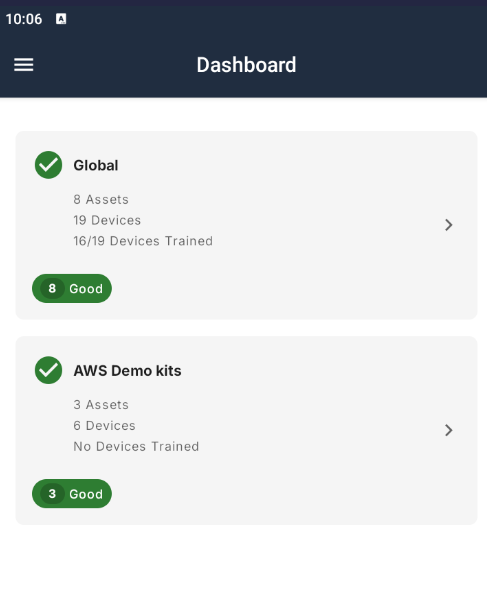
Step 3: choose the asset
Open the top-left menu and select Assets, then tap the asset you want to attach the sensor to.
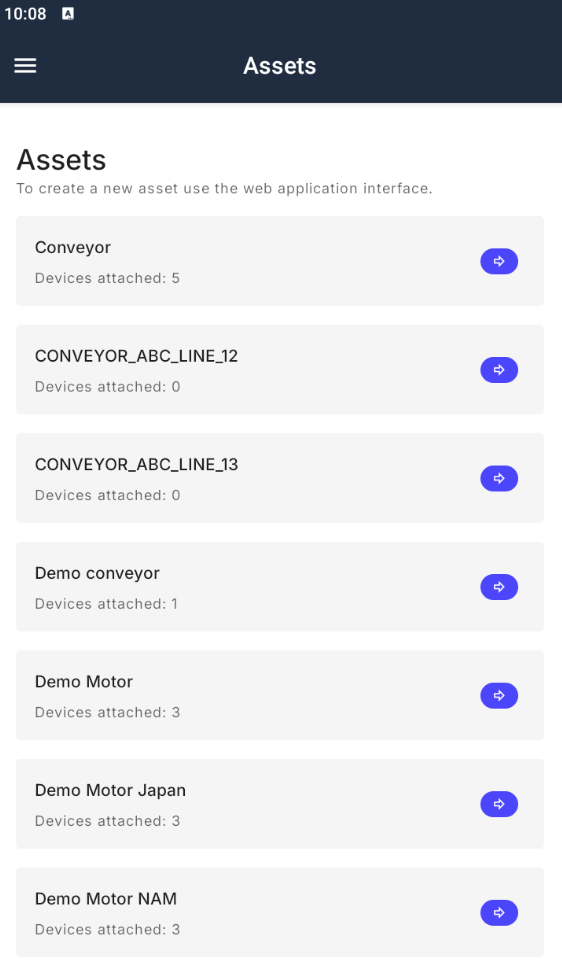
Step 4: start NFC pairing
Open the asset's Devices tab and press Attach Device to start NFC pairing.
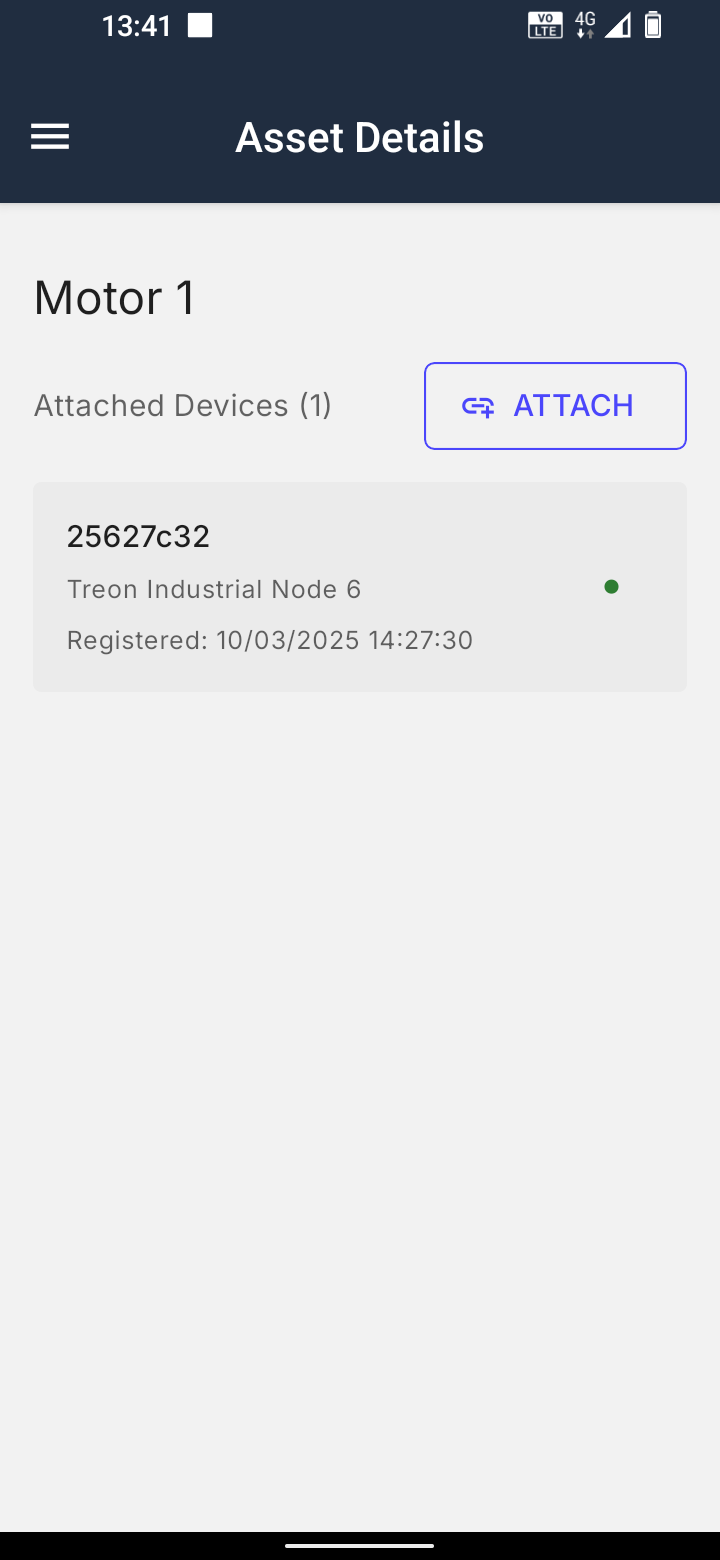
Bring the phone's NFC field close to the sensor and hold it there until pairing begins automatically.
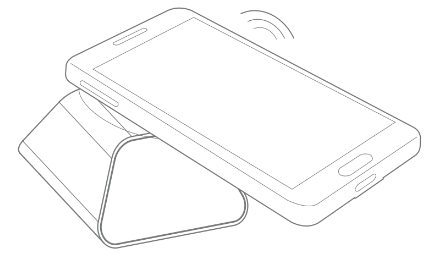
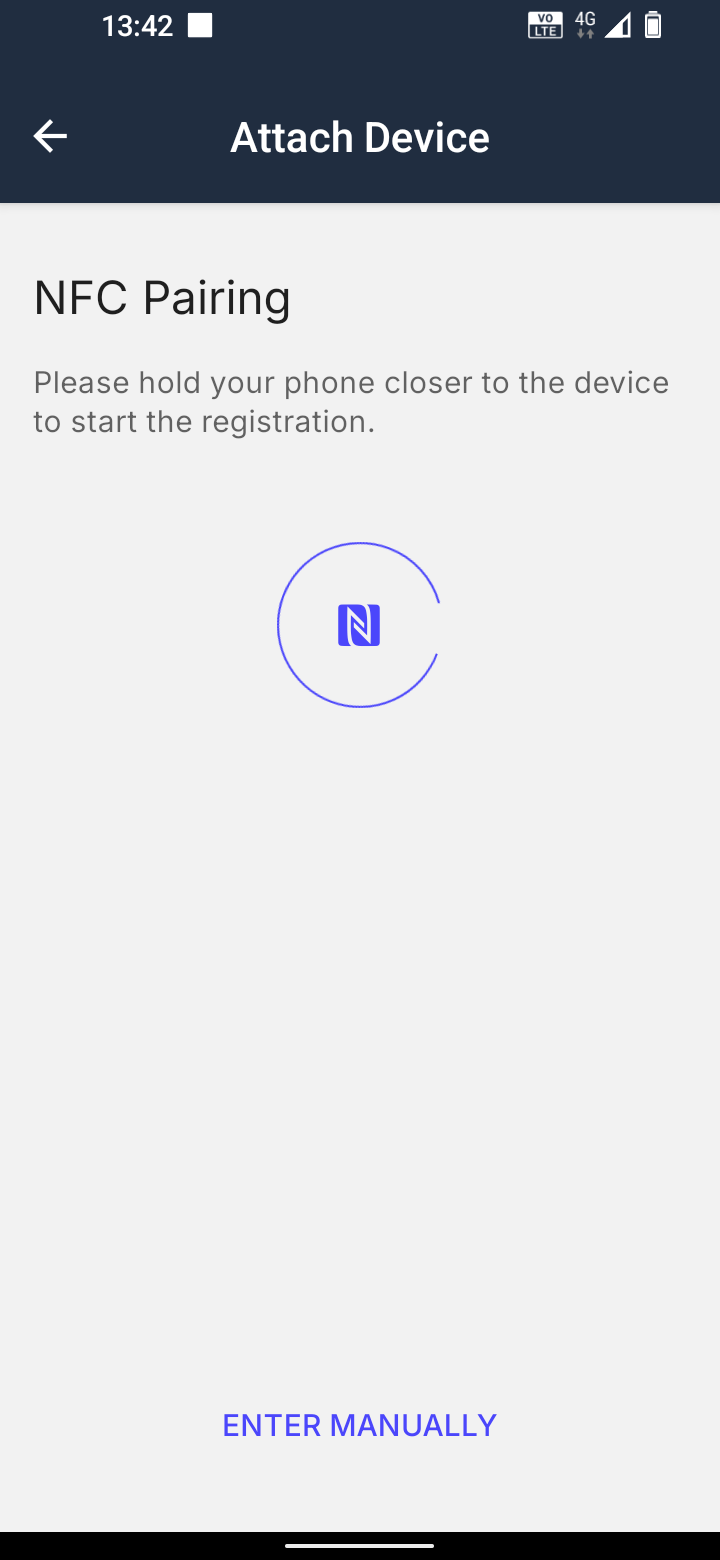
Hold the phone still until it confirms
NFC provisioning takes several seconds. Hold the phone flat against the sensor's NFC spot and keep it still until the app confirms — moving it away too early is the most common reason provisioning fails. If it does fail, press Try Again. The NFC antenna position varies between phone models; on the sensor, the spot is the top.
Step 5: wait for pairing to finish
The app shows the progress of the commissioning on screen.
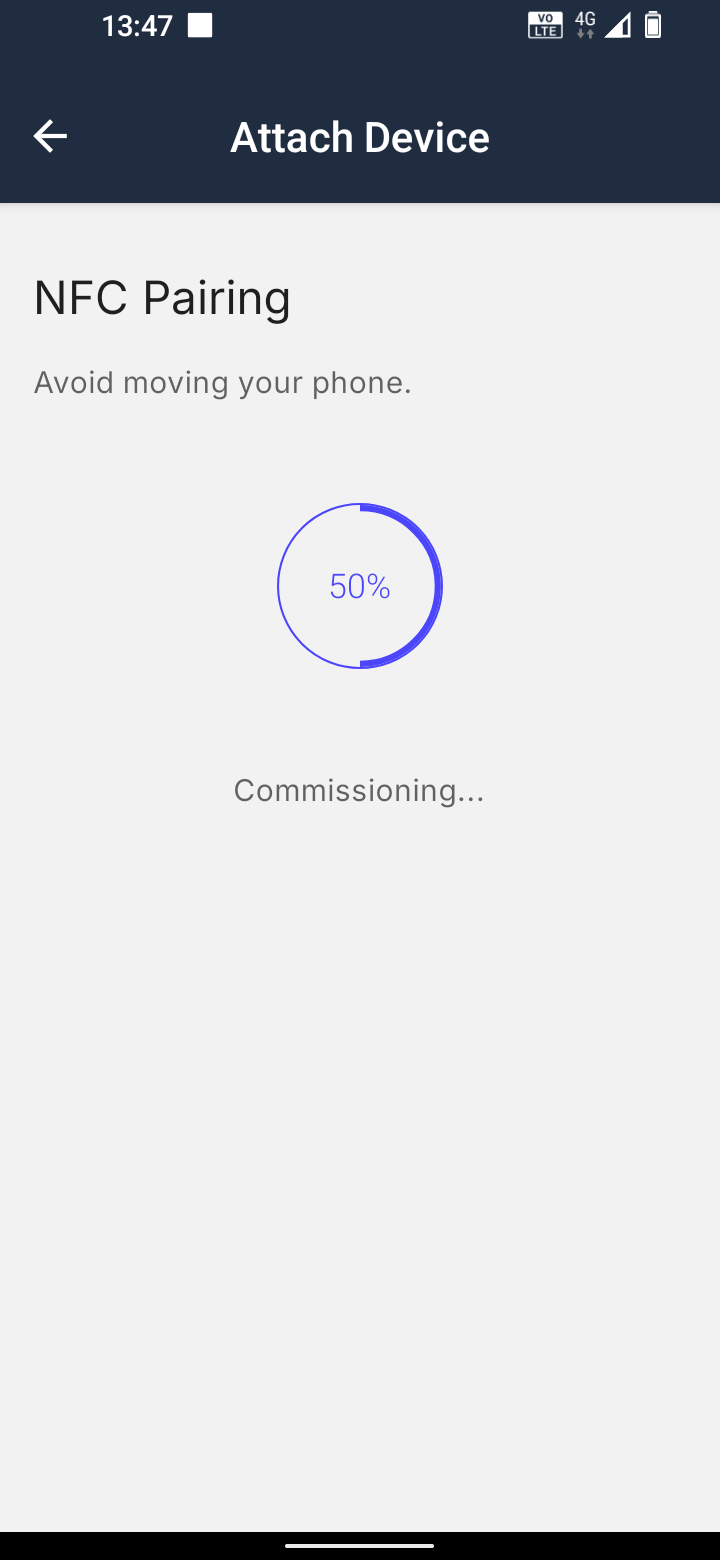
Step 4b/5b: attaching a sensor manually
Alternatively you can attach a sensor manually — possible only if the sensor has already been commissioned to an asset linked to your instance. Press Enter Manually during the NFC pairing process, then pick the sensor from the list of available sensors.
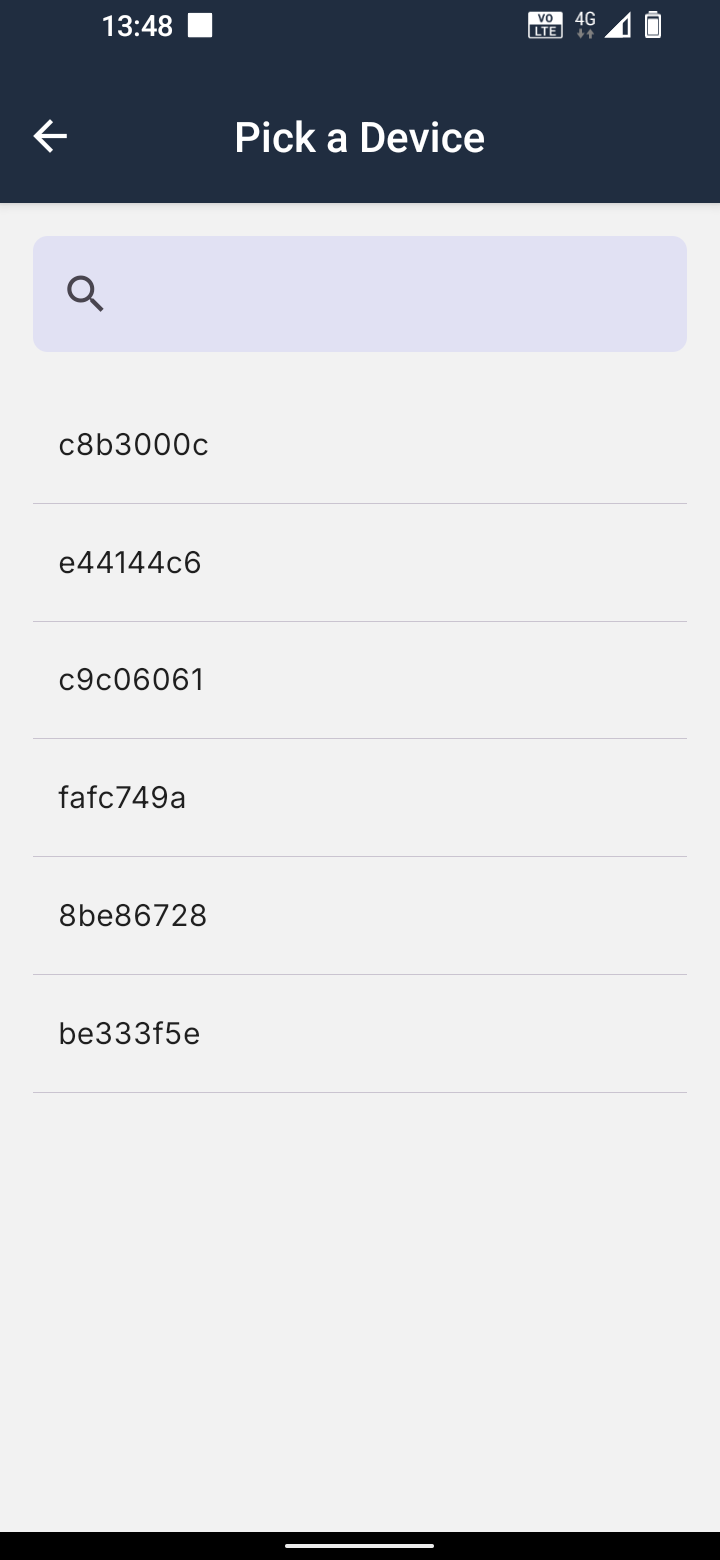
If the sensor is not in the list it has probably not been commissioned yet — use the NFC pairing flow instead.
Step 6: specify the device properties
Once pairing succeeds, fill in the details of the deployment.
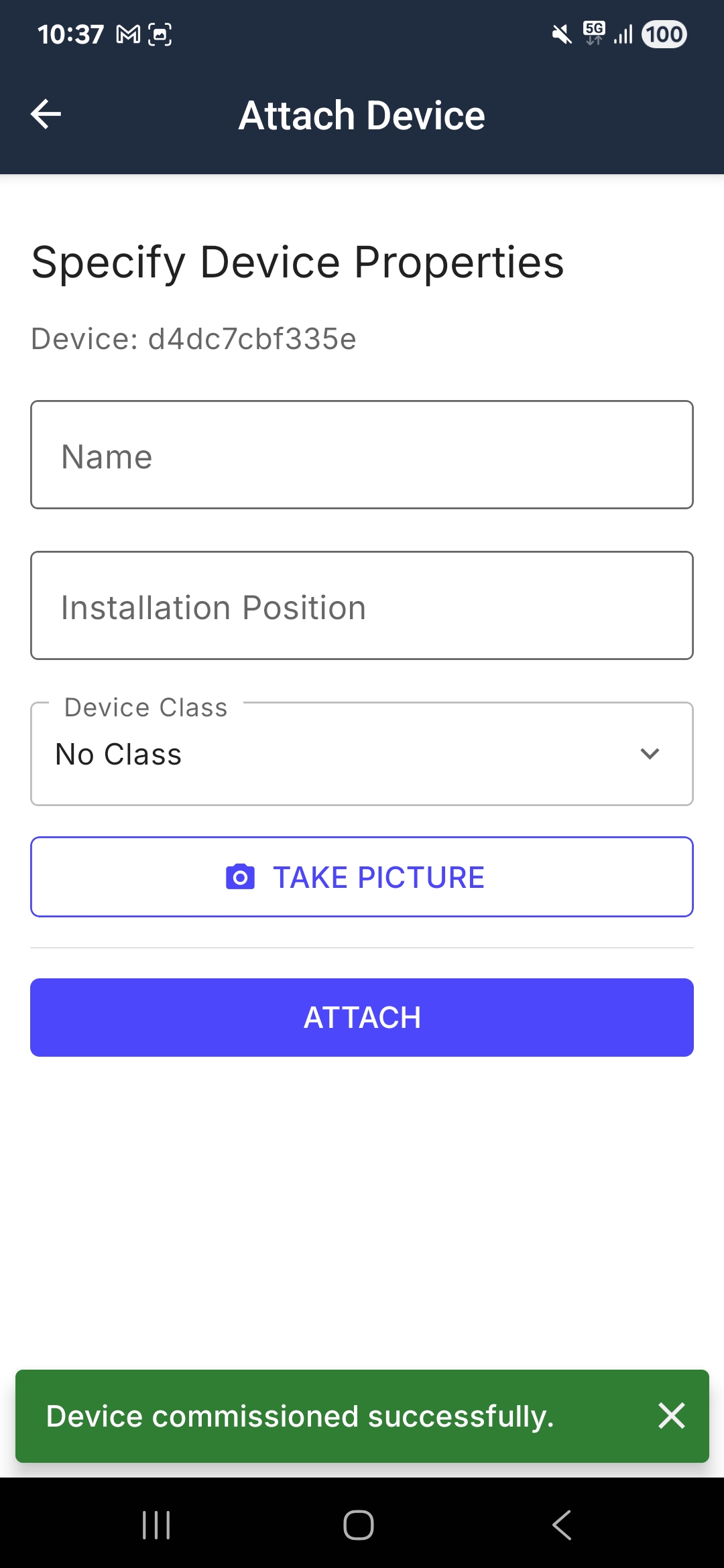
| Field | What to enter |
|---|---|
| Name | Name the sensor after its deployment position, so it is unambiguous later — for example "Conveyor belt B2, position 3, left side" or "Fork lift 3, motor top side". |
| Installation Position | Describe where the sensor sits on the asset. |
| Device Class | Pick a class from the pre-defined list. Assigning a class automatically enables class-based event rules for warnings and alerts — see Classifications. |
| Take Picture | Optionally photograph the sensor in place, so the next person can find it. |
Press Attach to complete commissioning.
Completion
The sensor is now commissioned and attached to an asset in your Treon Connect instance.
It won't send data immediately
Commissioning starts the sensor's internal clock cycle. It sends measurements at regular intervals from then on, and it may take several measurement cycles before the first data reaches the cloud. Once transmission begins it continues consistently.
Decommissioning
You can also decommission a sensor over NFC from its device screen (Decommission Device): the app runs the NFC decommission and detaches it from its asset. Use this when retiring or relocating a sensor.
Troubleshooting
"Oops! Something went wrong!" in the login view. The phone has no network connection, or a very poor one. Make sure it has connectivity over SIM or Wi-Fi.
"There are no assets." No assets have been created in Treon Connect. Commissioning needs an asset to attach the device to — create the assets first.
Commissioning failed because NFC was switched off. The app checks NFC is on before it starts, but not while the process runs. If NFC is turned off mid-flow, commissioning fails. Turn it back on and start again.
"Device commissioning failed" during NFC pairing. Usually the phone moved during pairing. Start again and keep the phone completely still. If it keeps failing while held steady, contact Treon Support.
Repeated failures a few seconds apart. After a failed commissioning the sensor goes into a sleep cycle. A new attempt about 3–5 seconds later fails too, which can turn into a loop. Wait 10 seconds before trying again.
"Permission Denied. You cannot commission this device." The sensor is already commissioned and you do not have access rights to it in Treon Connect. Ask a user with higher or admin access rights.
See also NFC provisioning seems to freeze.