Groups
Gain asset visibility across sites and locations. Groups is your site hierarchy of regions, plants and lines, and it also controls who sees what.
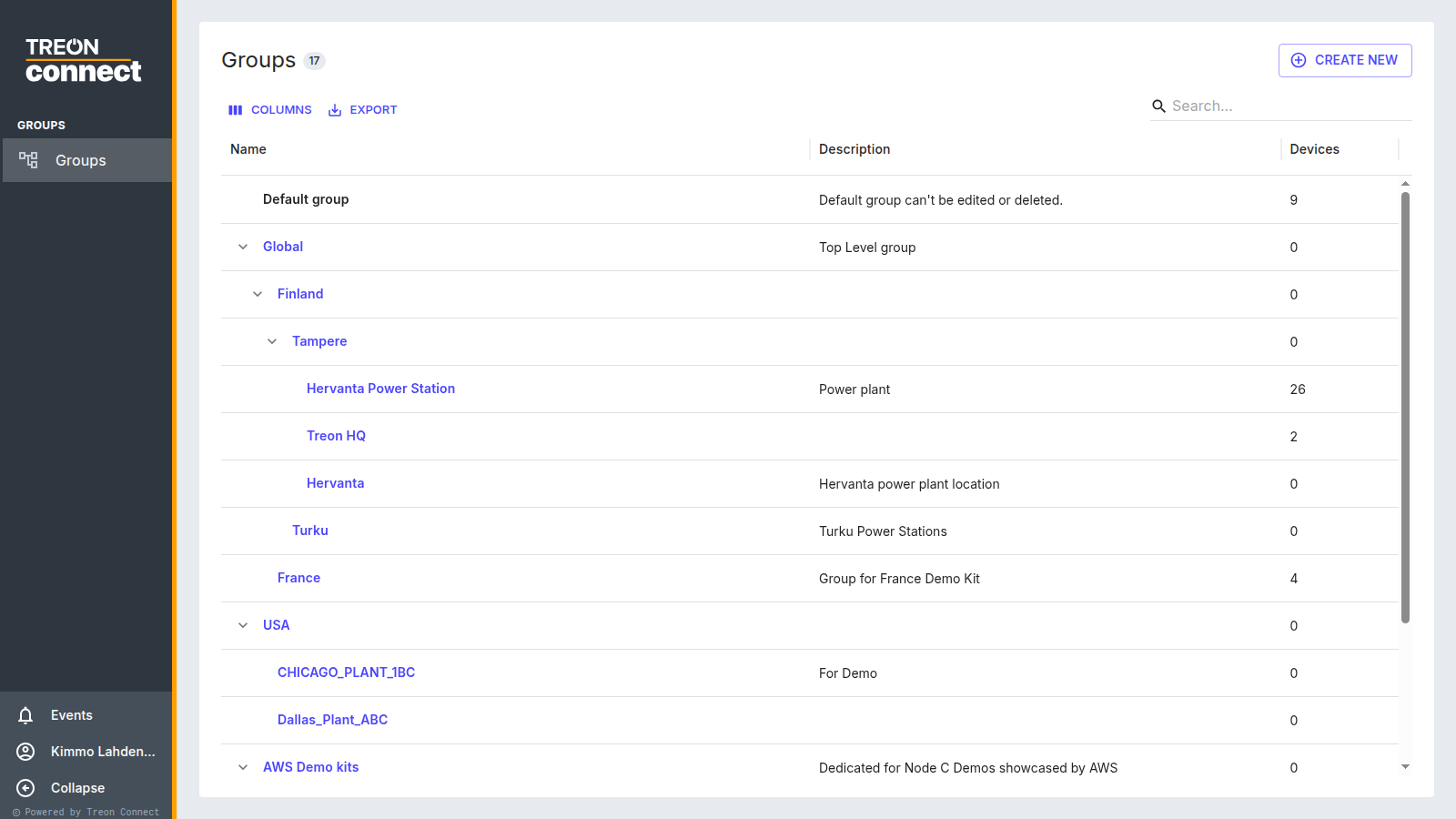
Why the tree matters
The hierarchy does three jobs at once:
- Navigation — the group selector in every application filters by it, and the Condition dashboard rolls health up per group.
- Access control — a role grants permission per group, cascading to everything beneath it.
- Reporting — reports and notification subscriptions are scoped to groups.
That makes it worth getting right early: reorganising a hierarchy that already holds assets, devices and roles is more work than building it while the instance is empty.
What you can do here
- Create groups and sub-groups anywhere in the tree.
- Rename, re-nest and delete them.
- Attach a layout image and an SOP document per group.
- See each group's Assets, Measurement Points and Devices counts.
See Group hierarchy for the screen-by-screen detail, or Build group hierarchy for the whole job end to end.