Treon Gateway Wi-Fi Connection
Legacy documentation
This page is preserved from the previous knowledge base and describes older Treon products and manual configuration workflows. It is kept for reference and is not maintained against current Treon Connect releases.
Introduction
The Treon Gateway, Treon Gateway 2 and Treon Gateway in Protective Enclosure can establish a network connection via Wi-Fi. When a deployment site does not allow installing an ethernet cable to the gateway, a Wi-Fi connection is usually the best choice.
Wi-Fi Standard
The Treon Gateway uses the Wi-Fi standards 802.11 b/g/n and is compatible with all 2.4G Wi-Fi networks.
Configuring the Treon Gateway
In order to establish and configure a Wi-Fi connection, access the Configuration UI of Treon Gateway as described in this article and proceed with the steps below.
- Choose Configure Wi-Fi network on the main page.
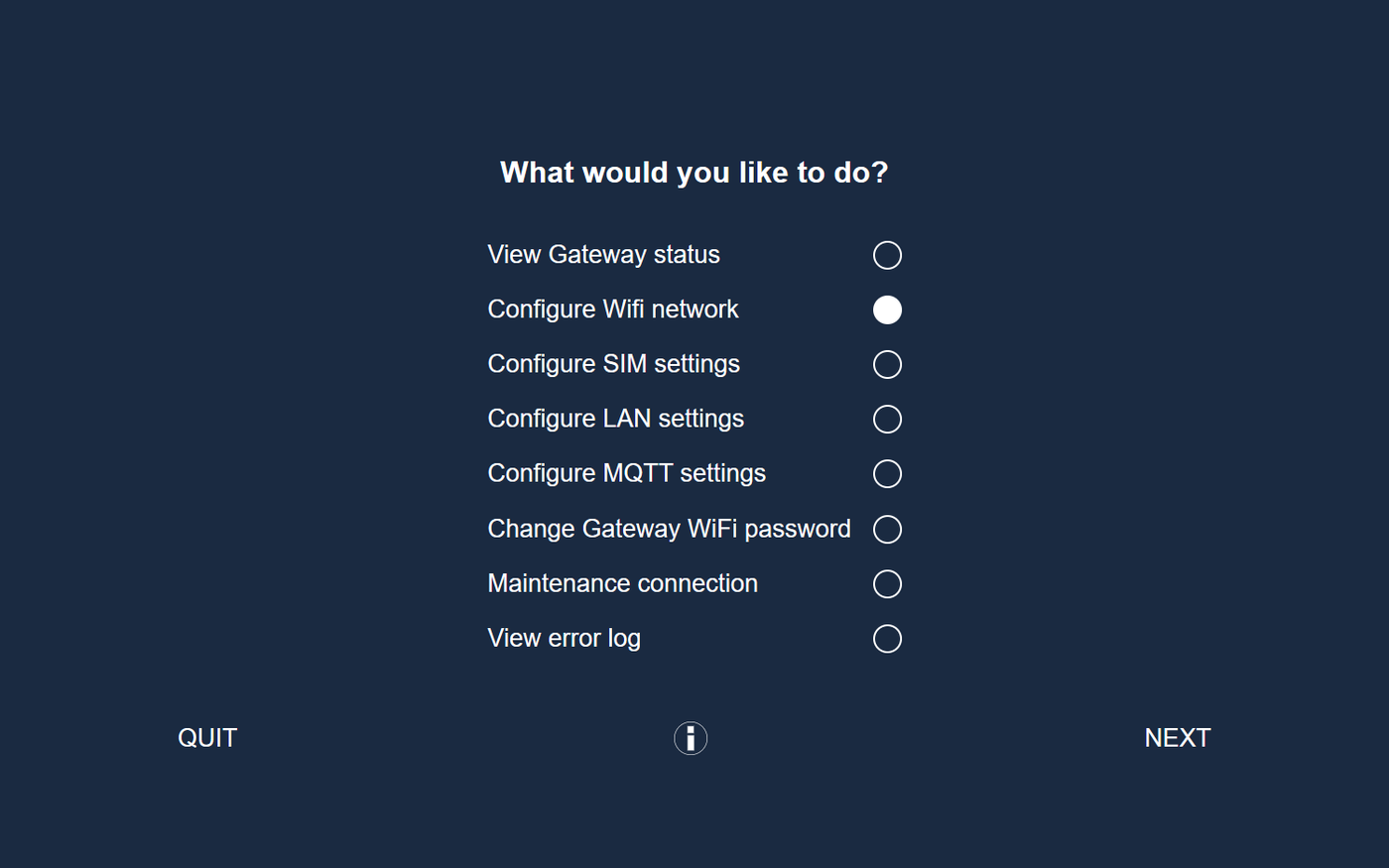
Fig.: Configure Wi-Fi network
- Choose Add Wi-Fi network and click Next. The Treon Gateway will now search for existing 2.4G networks.
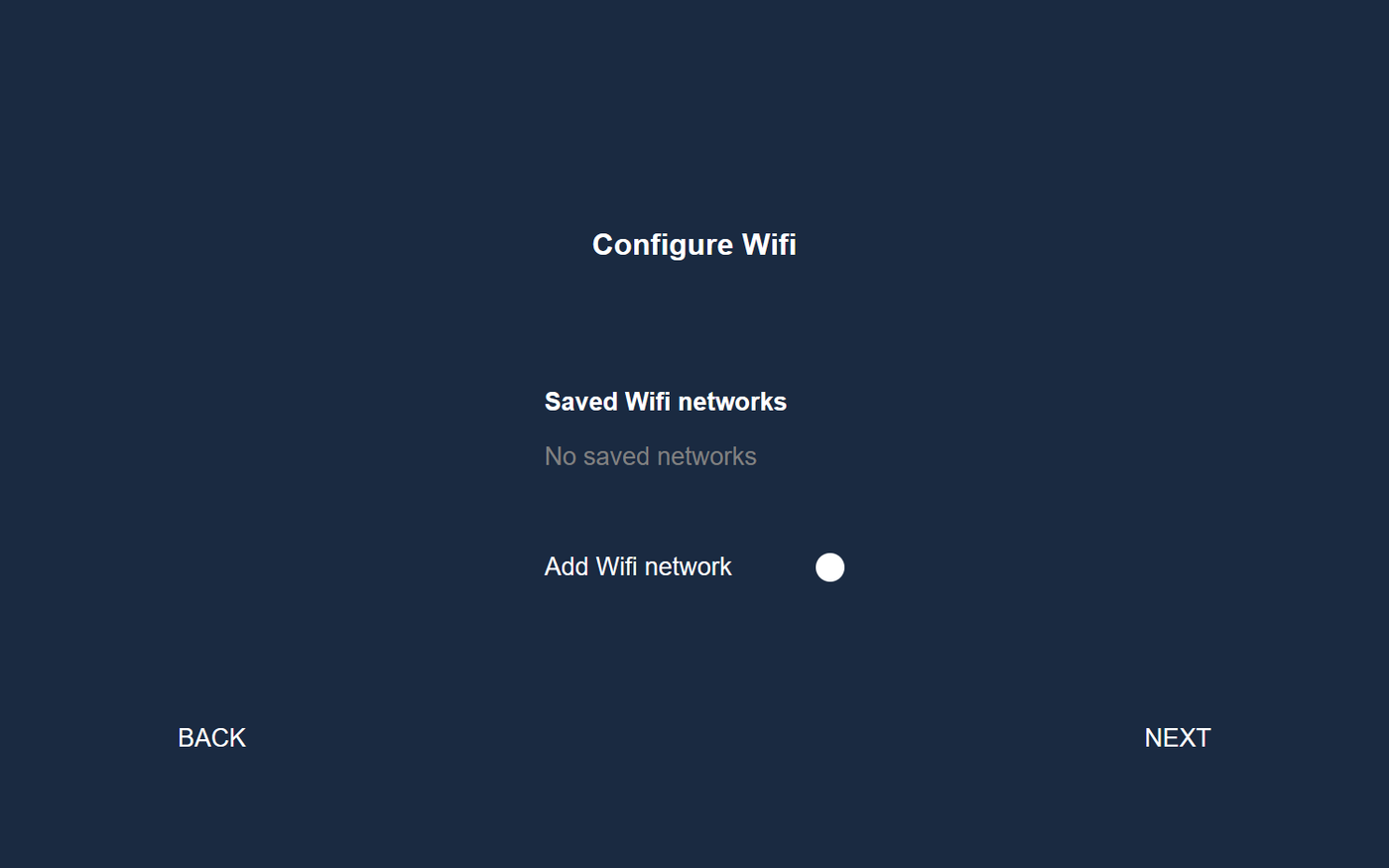
Fig.: Search for Wi-Fi networks
- Select the Wi-Fi network you would like to connect to.

Fig.: Choose wifi network
- Enter the password for the selected Wi-Fi network.
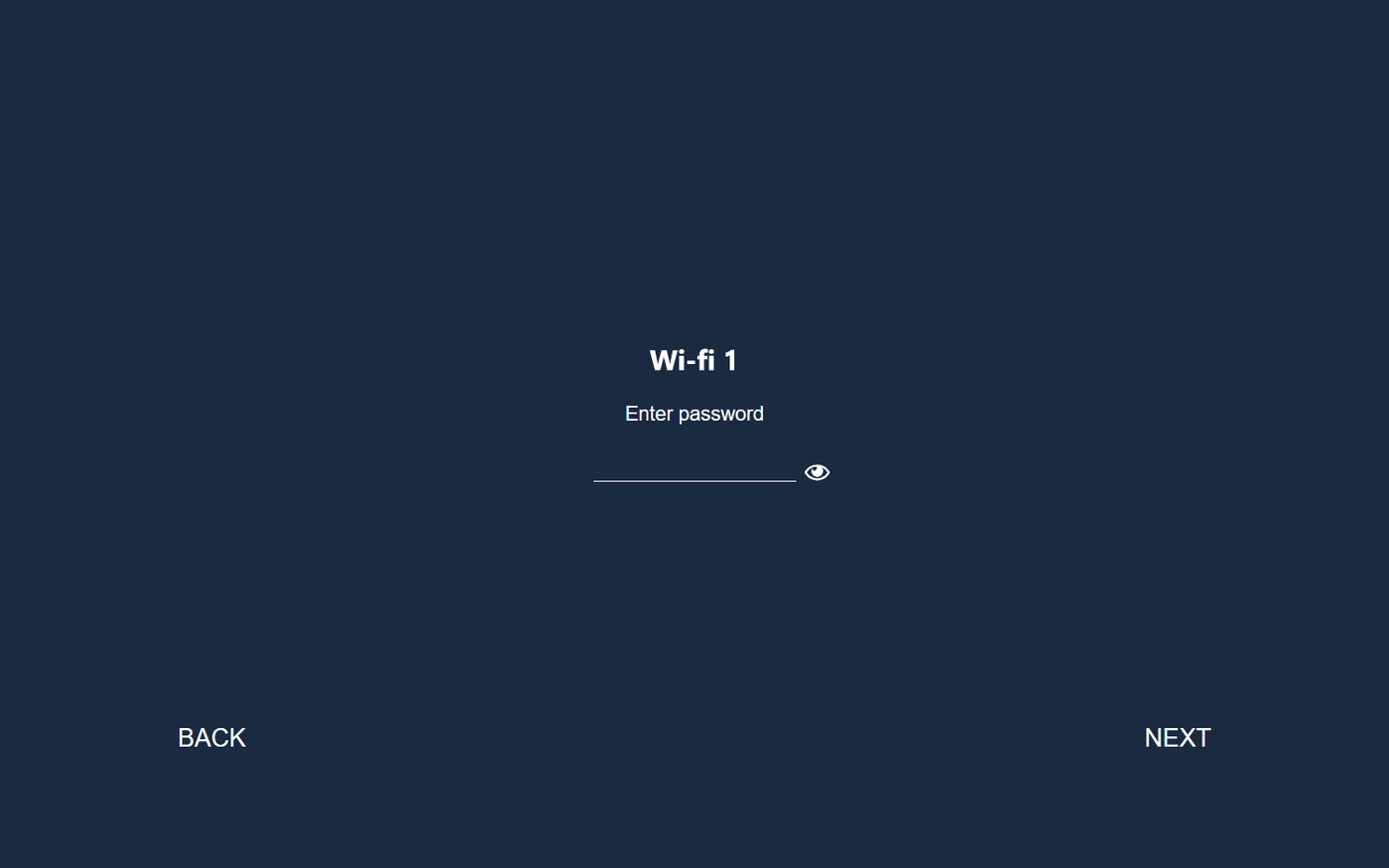
Fig.: Enter Wi-Fi password
- Now the Treon Gateway will connect automatically to the selected Wi-Fi network. In order to exit the Configuration UI, select Quit, or press and hold the configuration button (F) until the status light stops blinking.

Fig.: Quit the configuration session.