Group hierarchy
Build the tree that organises your sites and access. Each group shows its assets, measurement points, devices and an optional floor-plan layout.
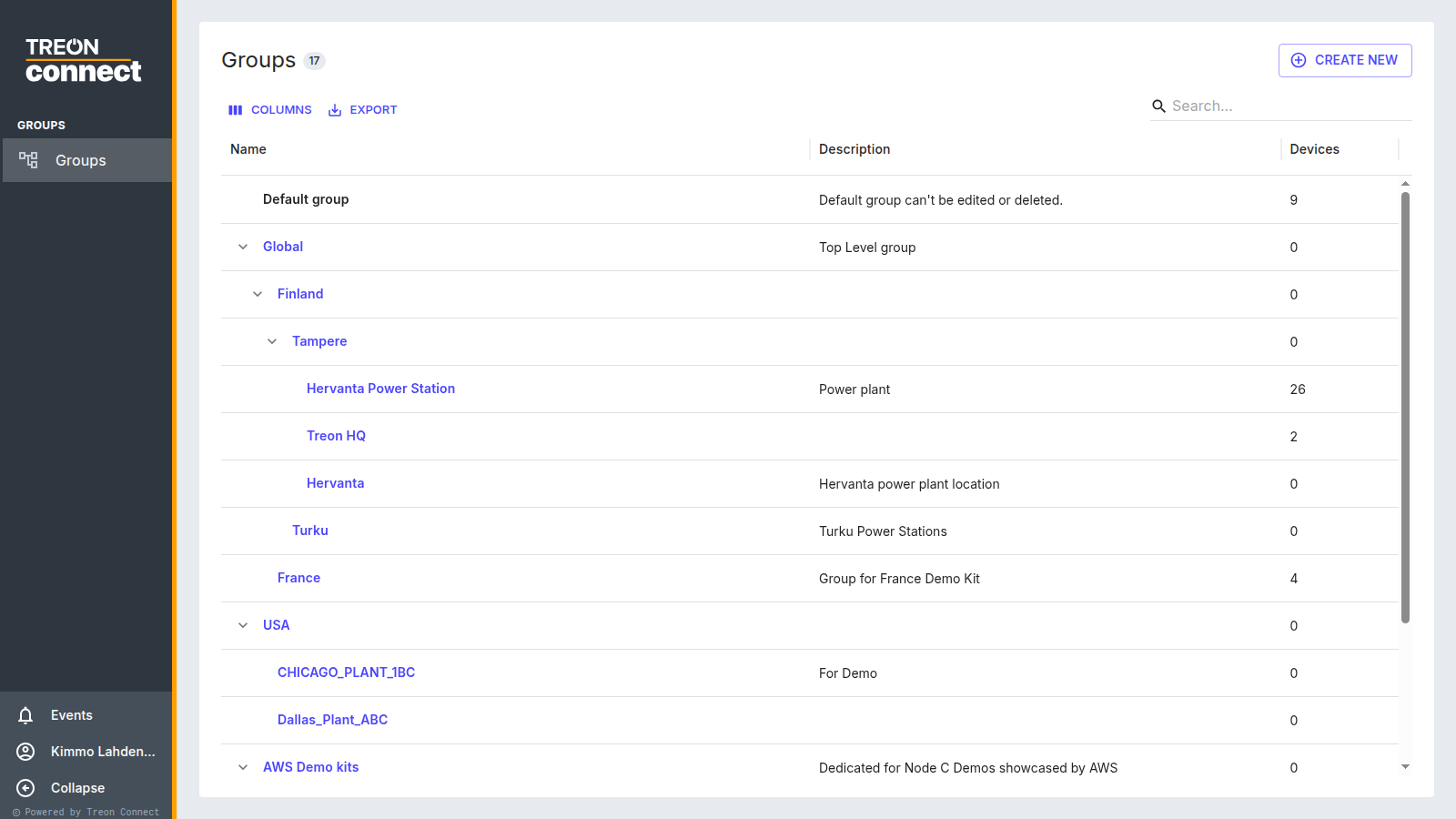
The list is a tree showing each group's Name and Description, its Assets, Measurement Points and Devices counts, and a Layout thumbnail where one is set. The Default group can't be edited or deleted.
Create a group or sub-group
Create New opens the Create Group drawer:
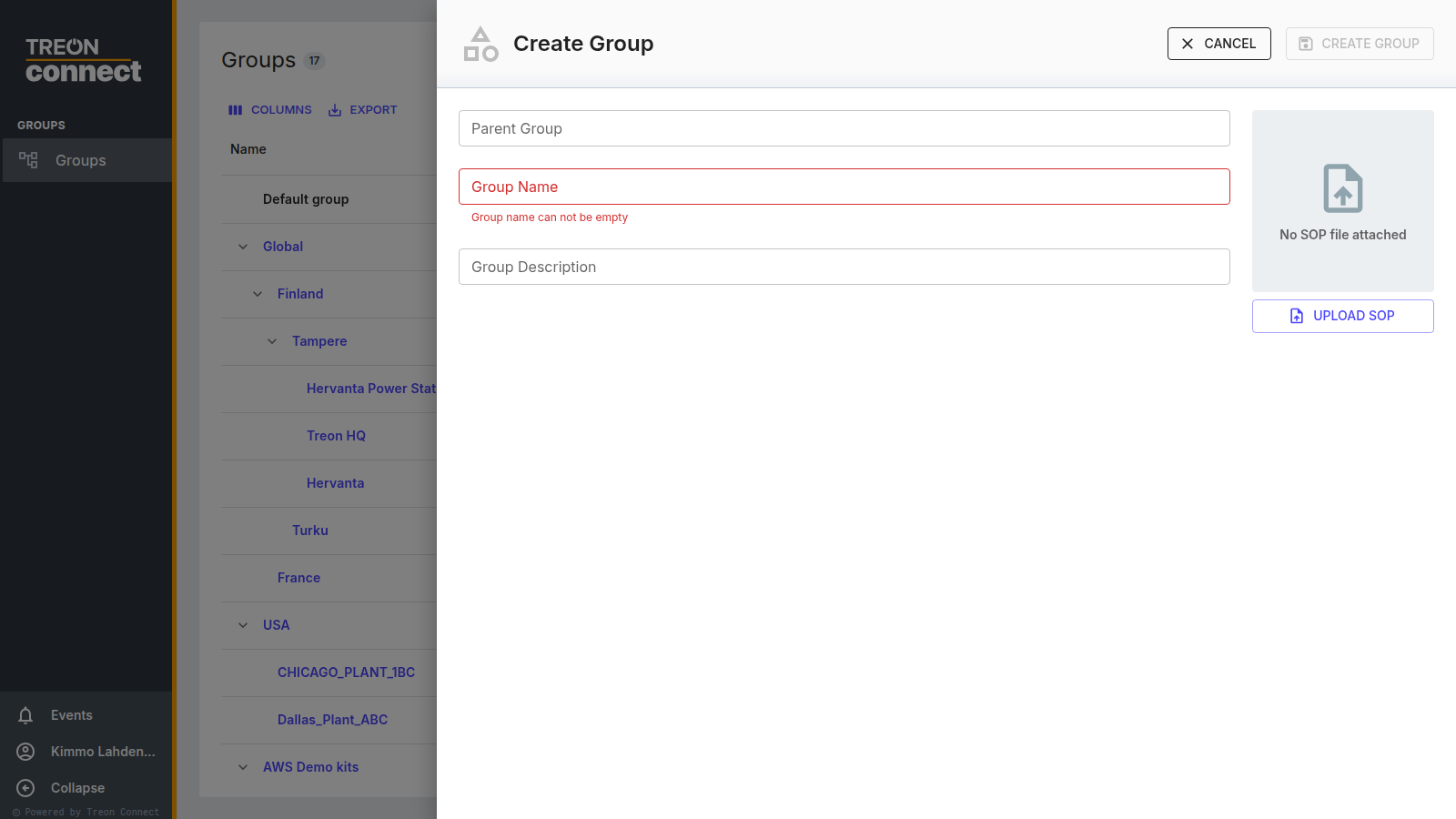
- Parent Group — leave blank for a top-level group, or pick a parent to nest the new group under it.
- Group Name (required) and Group Description.
- Optionally attach a layout image for the group and an SOP (PDF, up to 25 MB).
Create Group adds it to the tree.
Rename, move or reorganise
Open a group to edit it. To move or re-nest a group, change its Parent Group — there's no drag-and-drop. You can rename it, edit its description, and replace its image or SOP, then Save Changes. A group flagged with a hierarchy issue is locked — its tooltip explains that editing and deleting are disabled for it.
Delete a group
Delete a group from its editor, with a confirmation.
Where assets and devices are assigned
Assets and devices are placed into groups from the Assets and Devices applications — not here. This application manages the tree itself, its layout images and SOPs, and shows the counts.