Update your Treon Gateway via Configuration UI
Legacy documentation
This page is preserved from the previous knowledge base and describes older Treon products and manual configuration workflows. It is kept for reference and is not maintained against current Treon Connect releases.
Introduction
This article describes the update process for your Treon Gateway, Treon Gateway 2 or Treon Gateway in Protective Enclosure via Configuration UI.
**Please Note: In case you have a custom Treon Gateway software configuration, please contact Treon Support.
Step 1: Preparation
To perform this update, you will need:
- Treon Gateway in Access Point Mode
- Link to the Treon Gateway or Treon Gateway 2 software file.
You can find the correct update link in the release notes of the corresponding software release in the Updates section.
If you have files and settings stored on your Treon Gateway that should persist after the update, please read our article on Persist Move.
In case you would like to run software on the Treon Gateway after the update process has been successful, please read our article on Update Hooks.
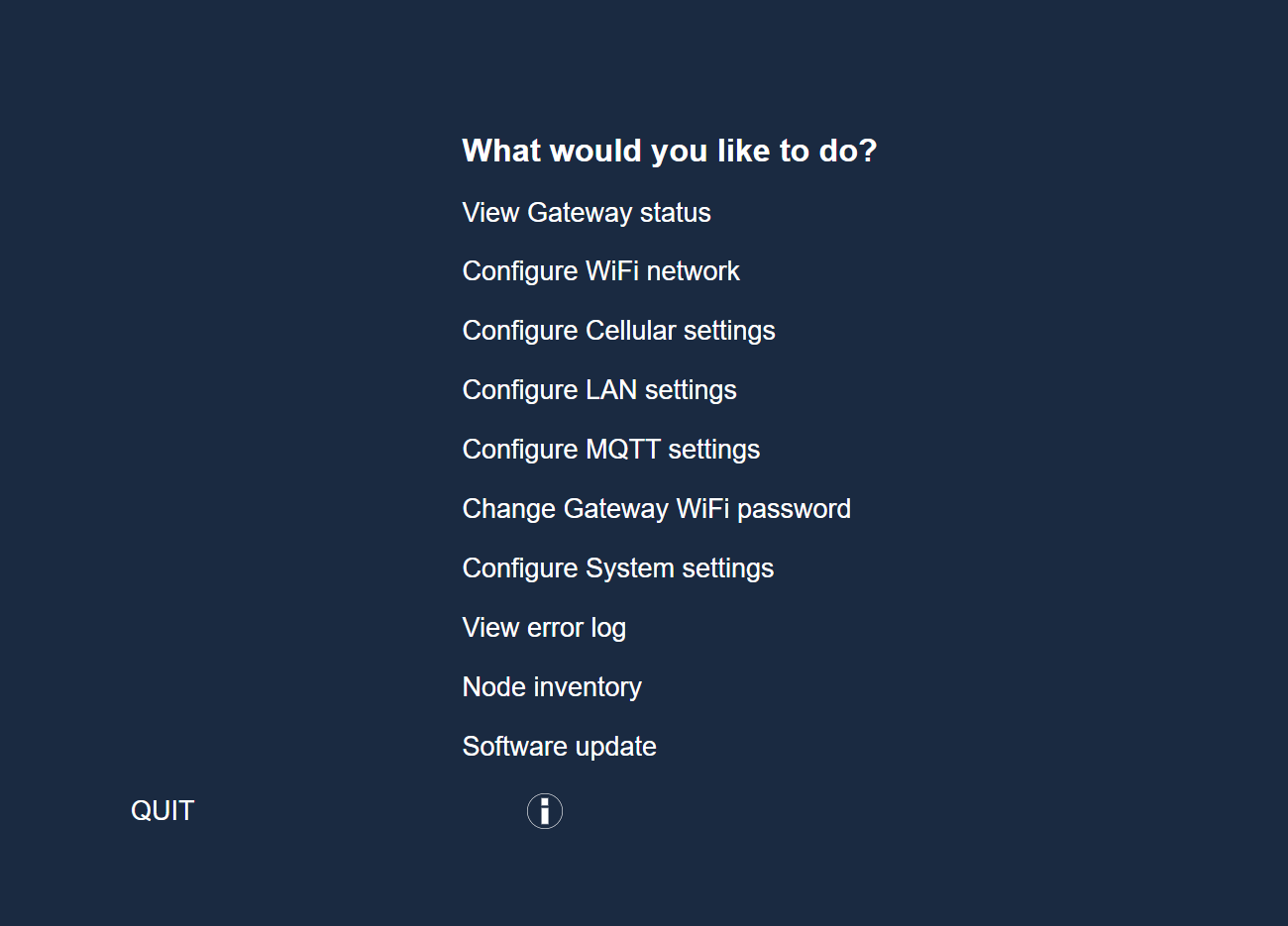
Step 2: Locate software update in Configuration UI
Locate the corresponding option on the Configuration UI of the Treon Gateway to update your software.
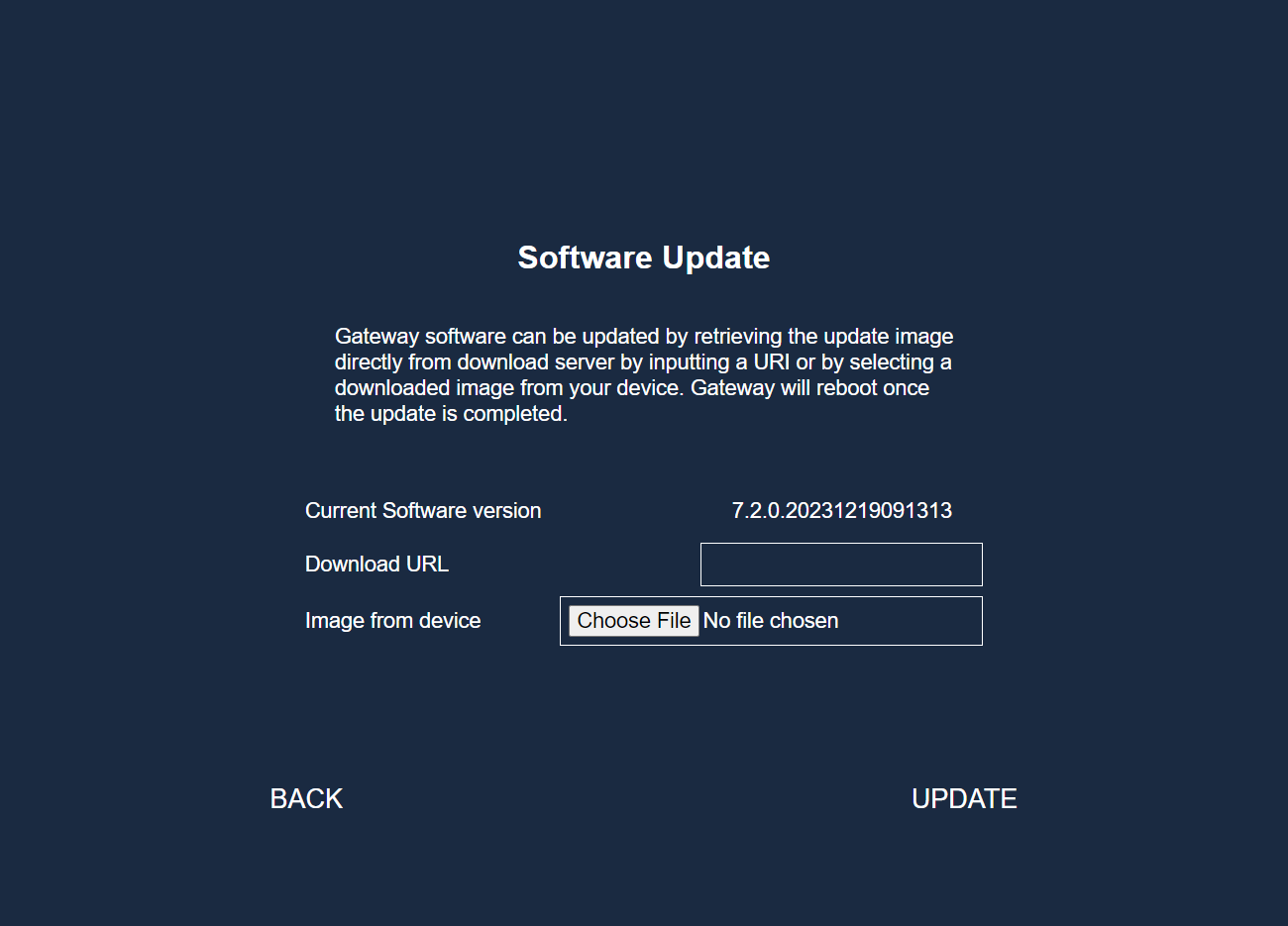
You will see the current software version that your Treon Gateway has installed. Then two different options for the update.
Step 3: Using the firmware URL
Update with URI, same as with the other update methods. Paste it in the “Download URL” section and press “UPDATE”.
Depending on your download speed of your network connection, this process will take about 5 to 30 minutes.
After the successful download and installation of the update, the gateway will reboot automatically. This will take several minutes, longer than usual start-up time.
Step 4: Using image from your device
Upload file from computer. For this to work you need to acquire the file first on your laptop. There are 2 ways
- Download the file to another Gateway with SSH and the attribute “–verify” at the end so it doesn’t apply the update
- Contact Treon Support
Select “Choose file” on the “Image from device” option and select the update file and press “UPDATE”.
Since there is no download required, this process should take less time.
After the installation of the update, the gateway will reboot automatically. This will take several minutes, longer than usual start-up time.
Step 5: Check successful update
After the Treon Gateway has rebooted, you can check if the update was successful. Please log in to your gateway again as described in step 2 and follow the procedure to check the product software release version.