Access Management
For accessing the Access management app, click the corresponding app button in the Treon Connect main menu.
It will give you access to two menus:
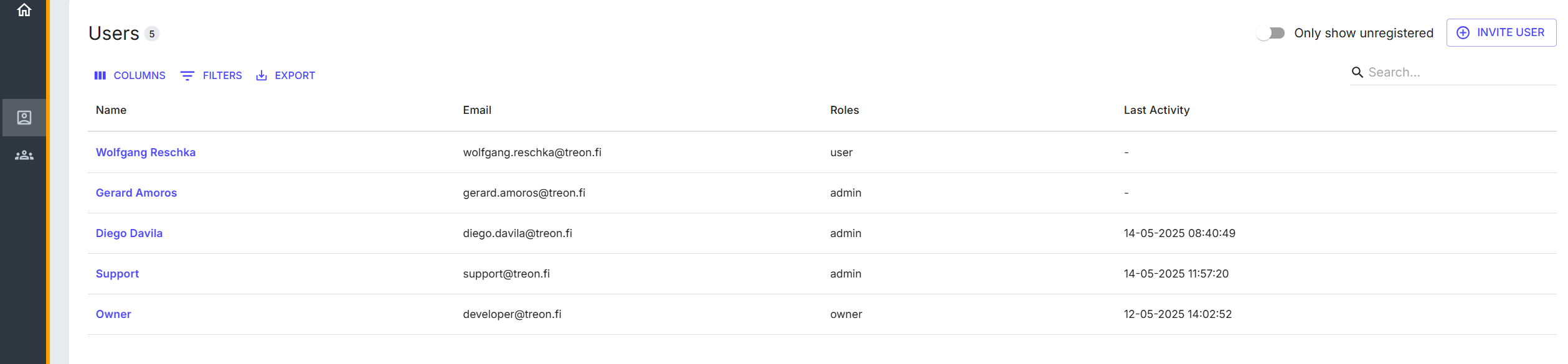
- Users presents a list of all current users.
- Roles shows and lets you make change to the different user roles and user access level.
Inviting New Users
To invite new users, press the Invite New button on the top right side. This will open a new window. Enter the name and email address of the new user, choose a role, and press Send Invite.
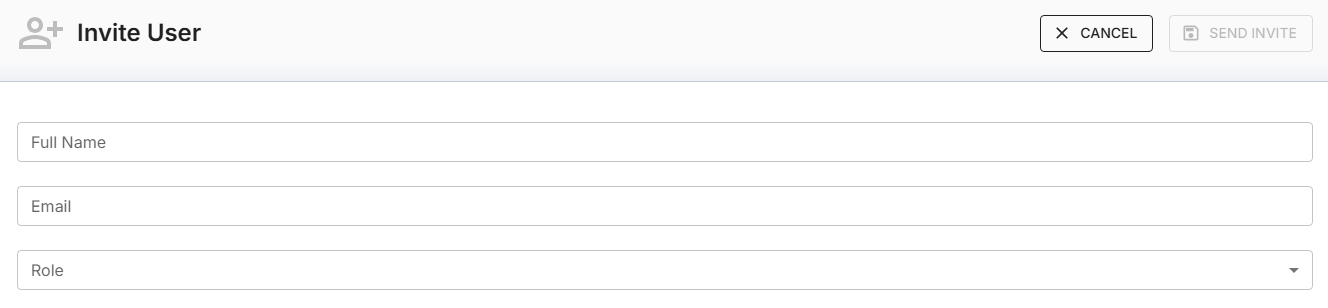
An email with all necessary information will be sent to the new user immediately. Clicking on the link provided in the email will open a browser window where the new user can set the password for the account and then log-in to Treon Connect.
Roles
A user account can either be an Admin or a User account.
Only Admin accounts can invite new users.
Upcoming feature: Complex user access control will let you decide which user has access to specific asset groups!
Filter & Search for Users
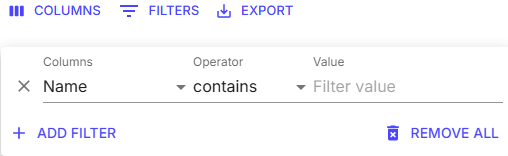
To filter the list of users, choose the Filters button and a new field will appear.
You can filter by user Name, Email and Registration date combined with an Operator and a Value.
You can also use the Search function to find a specific user.
Export Users List
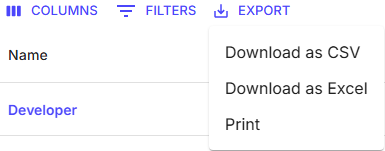
To export a full or a filtered list of users, choose the Export button. You can choose between downloading the list as Excel file or as CSV file, or printing it.
Editing & Deleting Users
Should you want to edit or delete a user account, click on the name in the Users list and a new window will open.
 Here you can delete and edit existing user accounts, as well as reset the password.
Next step: Module 2: Condition Monitoring

Last updated on Dec 8, 2025