Activate your Treon Connect account

Introduction
In order to use Treon Connect, you first have to activate your account.
Account activation is done exclusively through the Treon Connect web application.
Once your account is activated, you can use your credentials to access both the Treon Connect web and the Treon Connect mobile app.
Video Tutorial
Step-by-Step Instruction
Step 1: Receive Welcome Email
Initially, the Treon Connect administrator in your organization will create your account.
You will then receive an invitation to join Treon Connect via email.
If you don’t see the email, please check your spam folder. If needed, your administrator can resend the invitation to you via email.
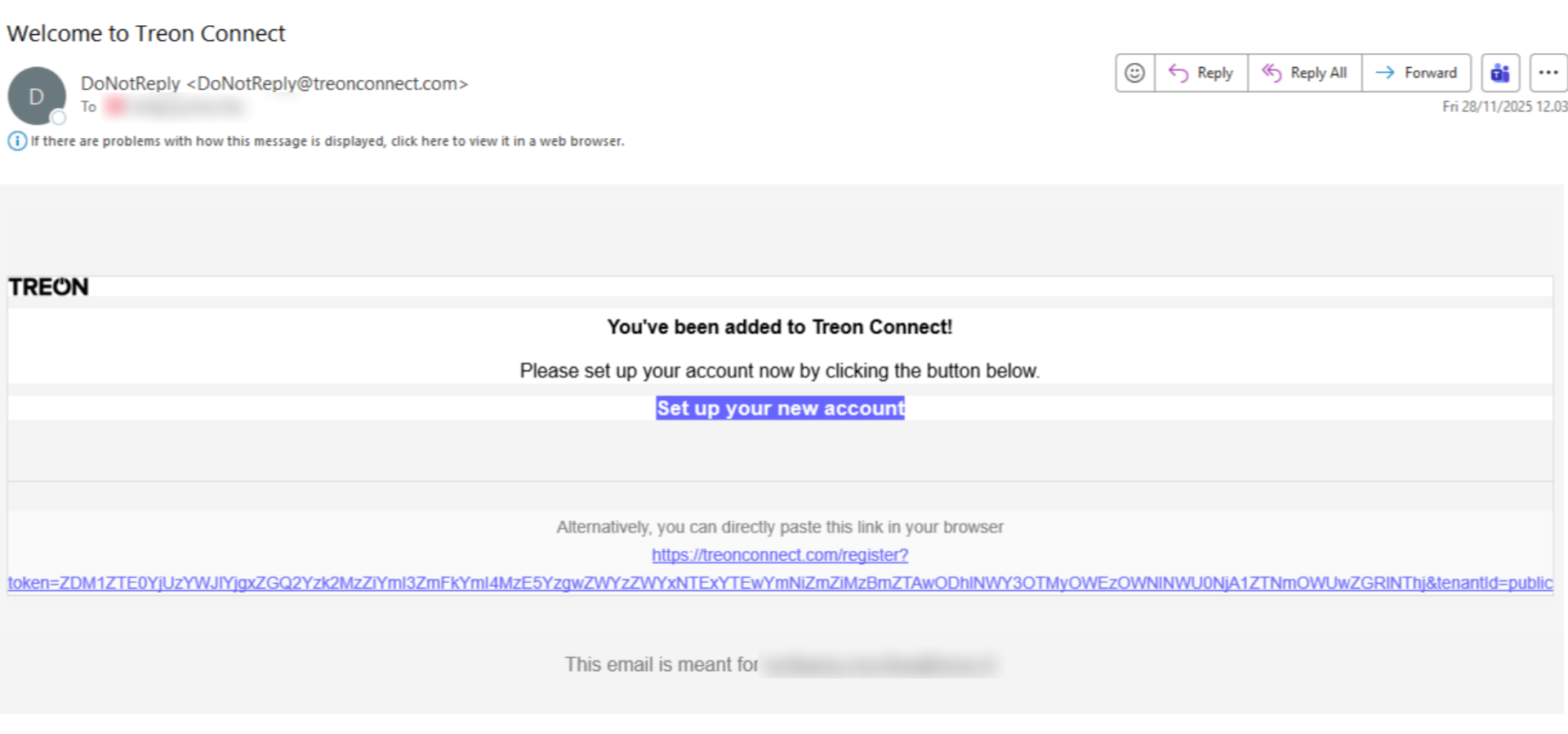
Step 2: Click Link
To proceed, click the “Set up your new account” link in your invitation email.
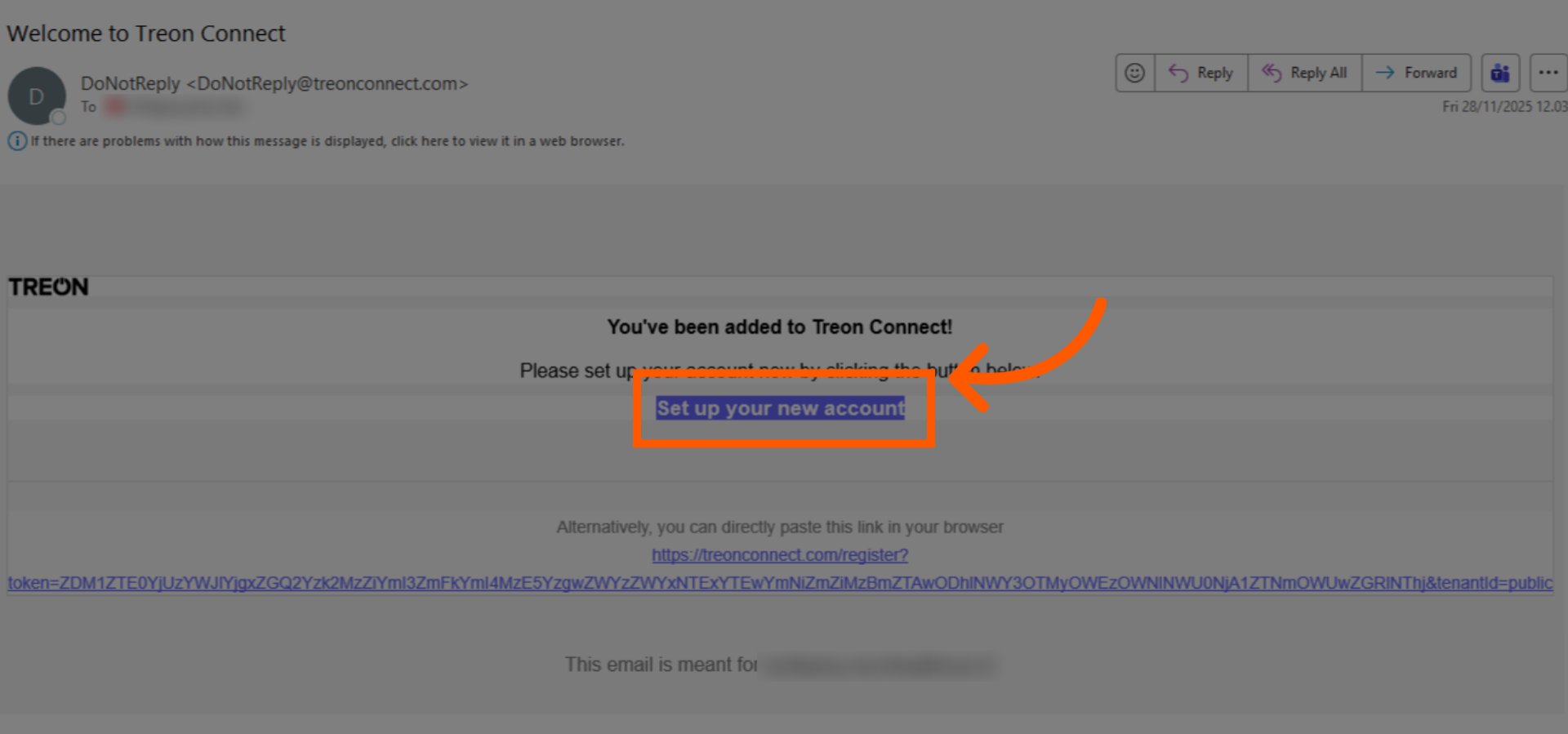
Your browser will now automatically open a new window displaying the Treon Connect Welcome page.

Step 3: Choose Password
Please create a password for your Treon Connect account in the “New Password” field.
Choose a secure password that includes a mix of letters, numbers, and special characters.
Re-enter the same password in the “Confirm Password” field.
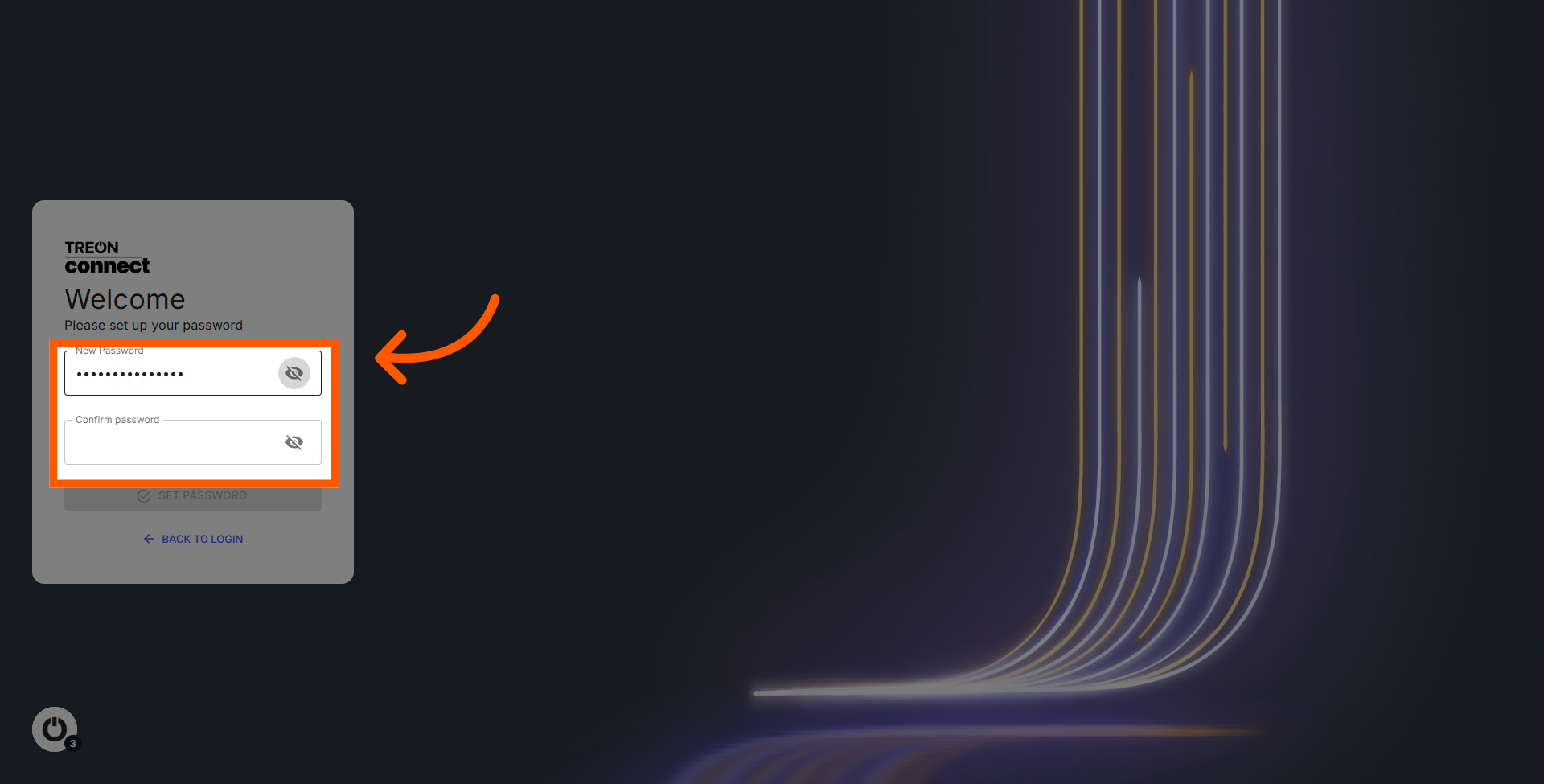
Step 4: Confirm Account
Click the SET PASSWORD button to save your new password and activate your account.
Step 5: Back to Login
Your password has been successfully saved. Click the BACK TO LOGIN button to continue to the login screen.
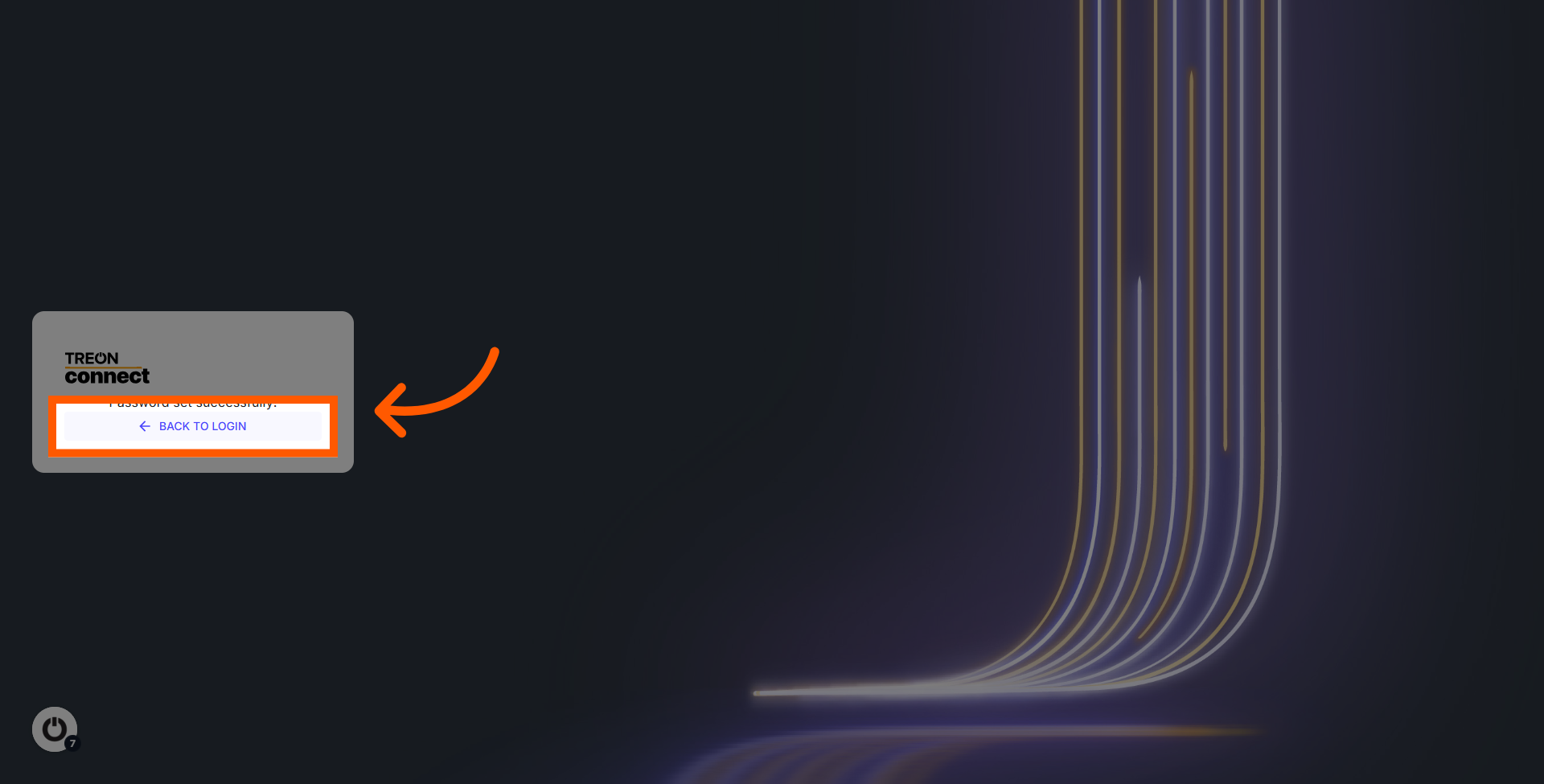
Step 6: Log into the Account
This is the login screen for your Treon Connect instance.
Please enter your email address and the password you selected. Click the LOGIN button to access your Treon Connect account.

You have now successfully Treon Connect account!
You can use your new Treon Connect user credentials to log in via the Treon Connect web application and the Treon Connect app.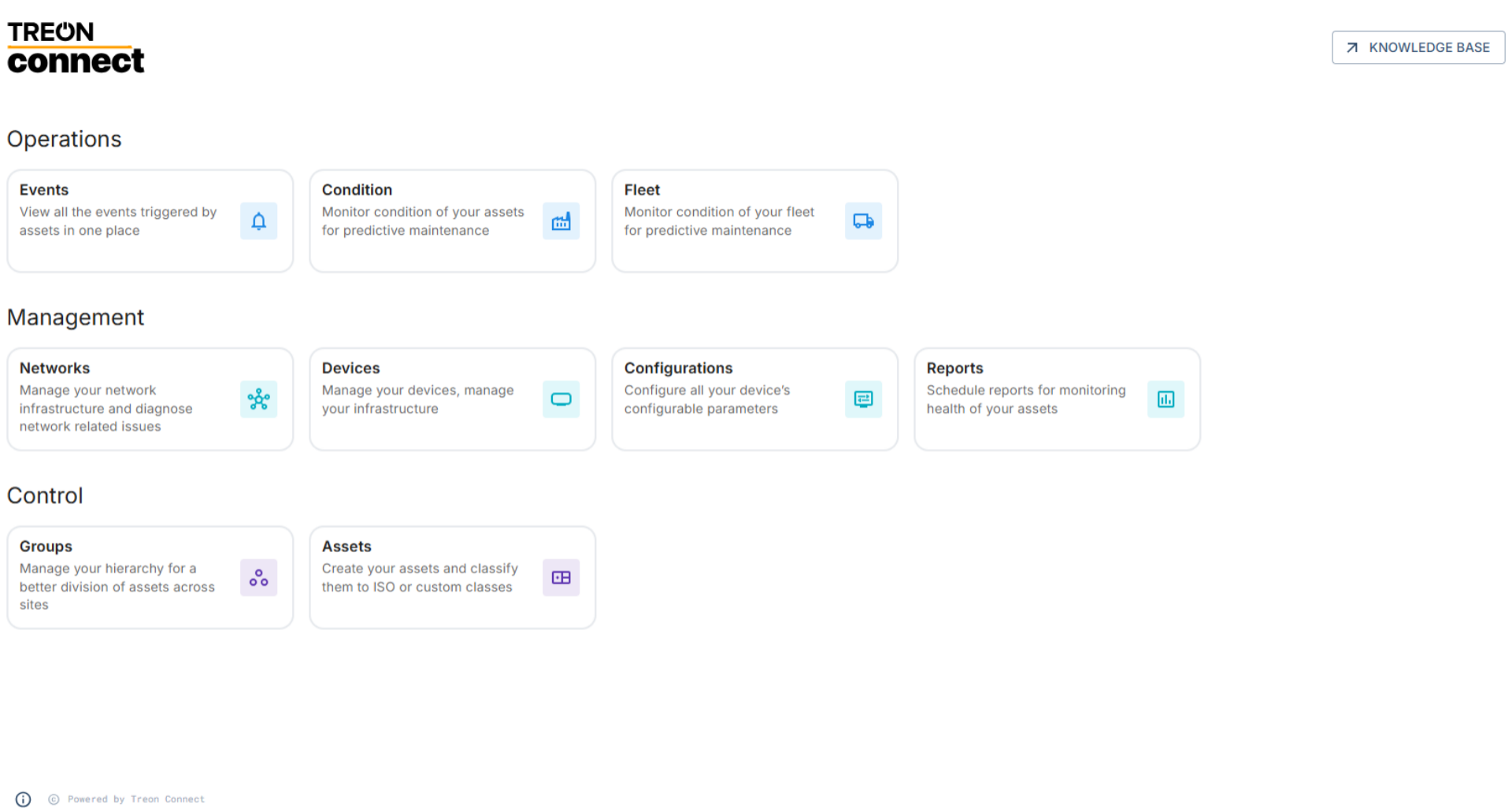
Troubleshooting
Error: I have not received the Welcome email
Check your Spam folder to see if the email is there.In case the email cannot be found, ask your organisation's IT administrator to re-send the Welcome email.

Last updated on Dec 9, 2025